
Talking to SAP via Claude: A Quick Installation Guide
Do you want to check warehouse orders, cancel a task, or look up a delivery—simply by asking, instead of clicking through SAP screens? Here’s how to set that up in just a few minutes.
What do you need to connect to SAP through Claude?
Claude Desktop installed on your computer.
Access to your SAP system —specifically, the web address (URL) of your SAP host, along with a username and password.
The connector file —
sap-ewm-mcp.mcpb— which you can download by sending an email to thomas@4scm.nl
That's it. No programming and no further installation—just a few clicks.
Here are the steps you need to follow to communicate with SAP through Claude
Step 1 — Download the connector
[Download sap-ewm-mcp.mcpb] To access this file, please send an email to thomas@4scm.nl
Save the file in a place where you can easily find it, such as your Downloads folder.
Step 2 — Install the connector in Claude Desktop
Open Claude Desktop.
Go to Settings > Extensions > Advanced settings > Extension Developer.
Click on Install Extension… and select the downloaded file
sap-ewm-mcp.mcpb.
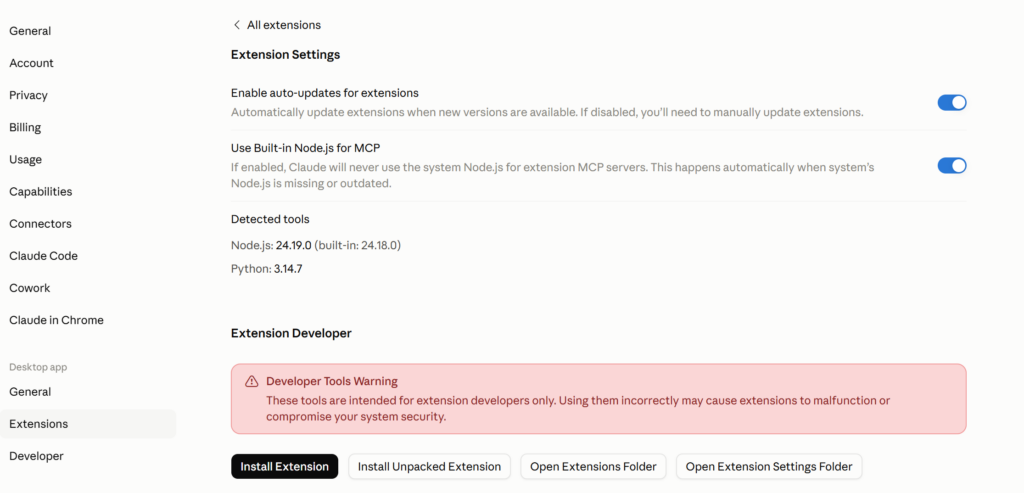
[Screenshot: Claude Desktop’s Extension Developer installation screen]
Step 3 — Connect the connector to your SAP system
When you install the extension, you'll be asked to provide three pieces of information:
SAP Host — the web address of your SAP system.
SAP Username — your SAP username.
SAP Password — your SAP password.
Enter this information and confirm. Your data will remain on your own computer and will be sent directly to your SAP system—never anywhere else.
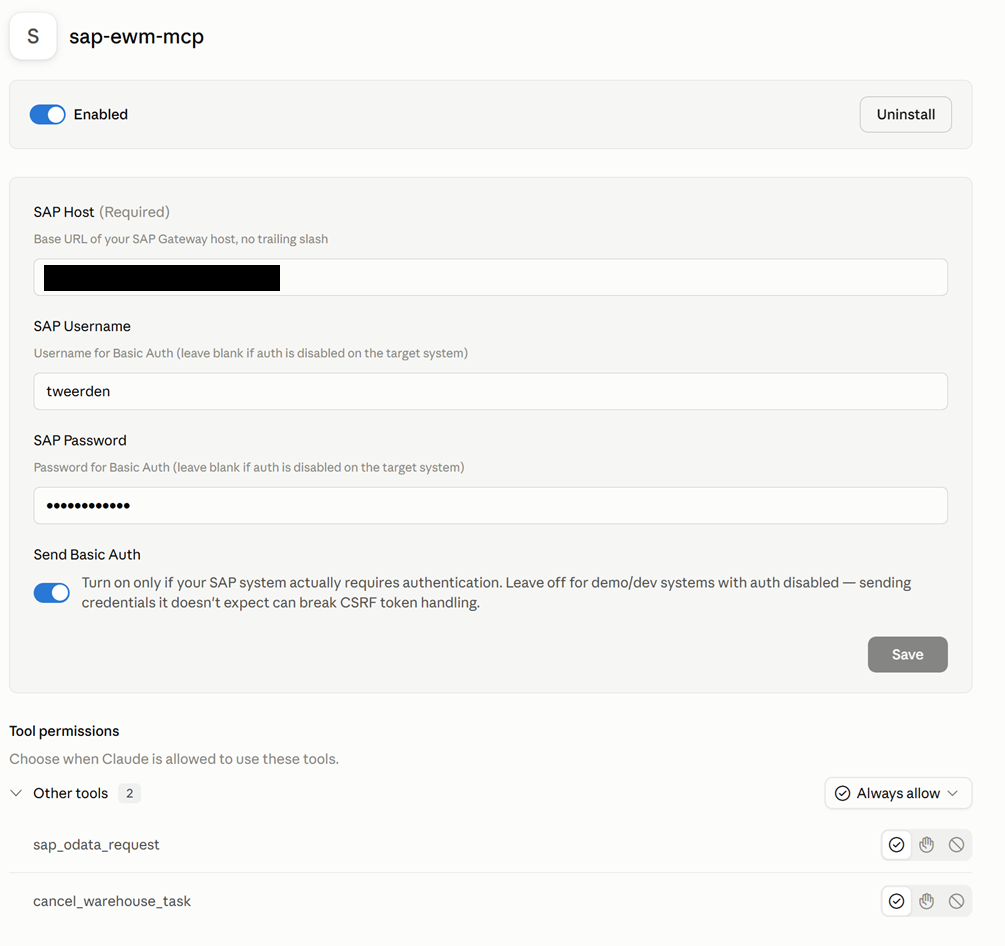
[Screenshot: the connection details screen — SAP Host / Username / Password fields]
Step 4 — Restart Claude Desktop
Close Claude Desktop completely and reopen the program. This ensures that the new connection is ready to use.
Step 5 — Just start by asking questions
That's it—you're connected. From now on, you can talk to SAP just as you would talk to a coworker. Here are a few examples:
“Find an open warehouse order in Warehouse 4SCM.”
“Cancel warehouse task 100012969.”
“Show me the outstanding shipments for Warehouse 4SCM.”
“Find warehouse orders that have been open for more than 24 hours and mark them.”
Claude takes care of the rest—looking up information, determining what needs to be done, and presenting the results in plain language.
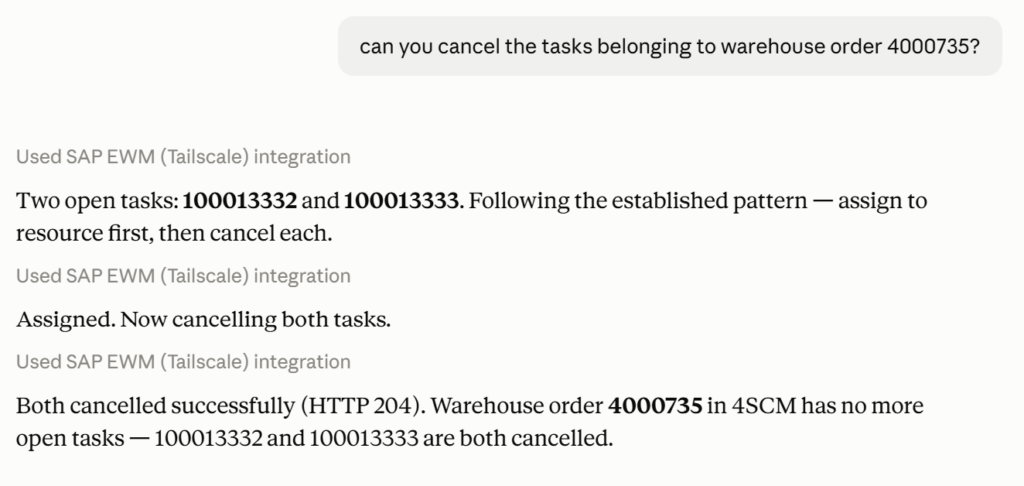
[Screenshot: an example conversation — a request in plain English and Claude’s response]
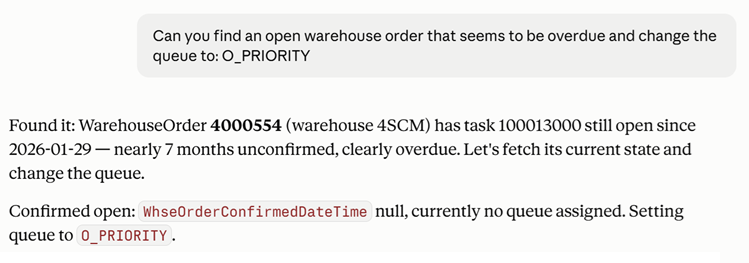
[Screenshot: an example conversation — a request in plain English and Claude’s response]
A Few Things to Know
Nothing happens unless you ask for it. Claude only looks up information or makes changes when you instruct him to do so.
Your SAP login credentials remain private. They are securely stored on your own computer by Claude Desktop and are used only to communicate directly with your SAP system.
The connector connects to the SAP system you specify. Therefore, make sure you are using the correct environment—for example, a test or demo environment instead of a live production system—while you are still getting familiar with it.
If something isn't working as expected, double-check the SAP host address and your login credentials. Also, make sure you completely closed and restarted Claude Desktop after installation.