
Connecting Claude to SAP EWM: A Step-by-Step Guide to Building Your Own MCP Connector
How we gave Claude secure, direct access to an SAP Extended Warehouse Management system using the Model Context Protocol—and how you can do the same in your own SAP demo environment.
Why We Built This
SAP Extended Warehouse Management (EWM) offers a comprehensive set of OData v4 APIs for warehouse orders, warehouse tasks, resources, and deliveries, among other things. They are powerful, but they are designed for system-to-system integration: the correct headers, CSRF tokens, ETags, and business-layer requirements must all be in place before a single request can be successfully executed.
We wanted something different: the ability to simply ask, “Cancel this warehouse task,” “Find an overdue warehouse order and give it a higher priority,” or “Show me the outstanding deliveries for this warehouse”—and for it to then be done correctly, without having to open a single SAP transaction.
To do that, we had to set up a real, working connection between Claude and SAP. In this article, we explain exactly how we built that connection, what challenges we encountered along the way, and how you can set it up on your own SAP demo system.
![[Screenshot: Claude chat window showing a natural-language request followed by Claude’s confirmation]](https://4scm.nl/wp-content/uploads/2026/08/Blog_SAP-EWM-MCP_image1-1.png)
[Screenshot: Claude chat window showing a natural-language request followed by Claude’s confirmation]
What is MCP, in simple terms?
The Model Context Protocol (MCP) is an open standard for connecting AI assistants to external tools and systems. Instead of an AI being able to only talk about a system, MCP enables the AI to communicate directly with the system—calling APIs, reading data, and performing actions—through a small “server” that acts as a bridge.
For our purposes, that bridge is a small program that runs locally. It translates natural-language requests into valid SAP OData v4 calls, including all necessary headers, tokens, and error handling, and then sends the results back to Claude.
Architectural Overview

Claude Desktop is where you enter your requests in plain language.
The MCP Server is a small Node.js program, packaged as a Claude Desktop extension (a
.mcpb(file), which runs locally on your computer.SAP EWM is accessed via the network—in our case, via a private Tailscale network, but any accessible HTTPS endpoint will work.
Login credentials are stored locally by Claude Desktop and only leave your computer to communicate directly with your SAP host.
From a request in plain language to an SAP API call
Here's what actually happens between the moment you enter a sentence and the moment SAP updates the data:
“Find all warehouse orders for outbound picking that have been open for more than 12 hours and assign them to the priority queue.”
Claude converts your request into a query. “Open for more than 12 hours” is not an actual SAP field. Claude therefore determines the correct time on its own and creates the appropriate filter for outbound picking orders that have not yet been confirmed.
The server queries SAP and returns the warehouse orders that currently meet the criteria.
Claude checks whether the results make sense and adjusts his approach if they don't — filters don't always behave as you'd expect.
For every order that meets the requirements, the server retrieves the
@odata.etagand a new CSRF token. Next, a PATCH request is sent to set the order's queue field to the priority queue. This request includes the token and the@odata.etagincluded as aIf-Match-header, so that SAP can verify that nothing else about the order has changed in the meantime. SAP responds on a per-order basis and either confirms the change or explains why it could not be implemented.Claude reports the results in plain language —how many orders were found, how many were given higher priority, and which issues still require attention.
You only see the result in plain language, but what feels like a single task to you may actually consist of a dozen or more SAP calls behind the scenes.
So why not just call the OData API directly?
That’s a valid question. The SAP API behaves exactly the same way, regardless of what calls it—a script, an RPA bot, or our connector. Ultimately, they all send the same HTTP requests. MCP does not provide SAP with any new capabilities.
Specifically, MCP defines a standard way for an AI app to ask a server, “What can you do?” The server then returns a list of tools, each with a name, a description in plain language, and the exact parameters required. For example, our connector publishes a tool called sap_odata_request. Claude reads the list, selects the tool that matches the request, and calls it using structured parameters. MCP also defines exactly how that call and the result are formatted, so that Claude always receives a reliable, readable response.
That’s the real benefit of a standard: without MCP, granting AI access to your systems means you have to write custom integration code specific to the AI product you’re using. If you build a connector with MCP once, any MCP-compatible AI app can discover and use the same tools without any extra work—just as any browser can open any website because both sides speak HTTP.
It was also what enabled Claude to adapt his approach during the task. When building the check for “open for more than 12 hours,” the initial filtering approach using the same generic tool quietly returned an incorrect answer. Claude noticed this, tried a different approach, and verified the result before taking any action—something a fixed script would never detect on its own.
And because MCP is an open standard—not a one-off custom solution—the same connector works with any MCP-compatible AI tool, not just this one.
Requirements
Before you begin, you'll need the following:
An accessible SAP system with an activated OData v4 service — for example, the default one Warehouse Order and Task (A2X)-API (
API_WAREHOUSE_ORDER_TASK_2).SAP user data with access to the relevant EWM warehouses. Note: OData v4 services in SAP cannot be executed with CSRF protection disabled. Unlike OData v2, there is no configuration switch to disable it (see SAP Note 2322624). Strong authentication must be enabled for the service.
Claude Desktop, with Extensions enabled in the settings.
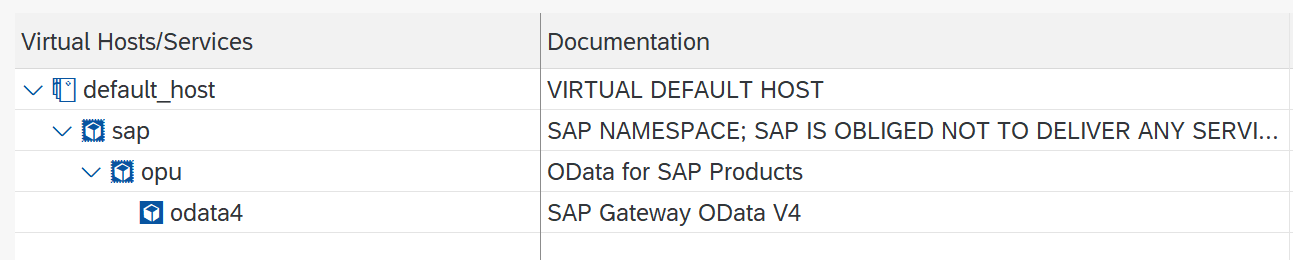
[Screenshot: SICF service activation screen showing the OData v4 service node]
Note: Steps 1–3 below describe how to we built the connector—the project structure, the manifest, and the packaging process. You don't have to do this yourself. At the end of this article, we'll share the fully finished, ready-to-use .mcpb-file. So if you just want to get started, you can skip ahead to [Step 4]. Steps 1–3 are intended for anyone who wants to know what’s going on under the hood or wants to further expand the connector.
Step 1 — Setting up the local MCP server (how we built it — not required for you)
Create a project folder with the following structure:
sap-ewm-mcp/
├── manifest.json
├── package.json
└── server/
    └── index.js
package.json contains two dependencies:
{
  "name": "sap-ewm-mcp",
  "version": "1.0.0",
  "type": "module",
  "main": "server/index.js",
  "dependencies": {
    "@modelcontextprotocol/sdk": "^1.12.0",
    "zod": "^3.24.1"
  }
}
server/index.js contains the actual logic. In general terms, it must:
The connection settings (host, username, password) are read from environment variables provided by Claude Desktop.
For every write operation (POST/PATCH/DELETE), retrieve a CSRF token from SAP using a GET request with the header
X-CSRF-Token: Fetch, and save the session cookies that SAP sends back along with the token.Return the token with the actual write request via
X-CSRF-Token, along with aIf-Match-header that displays the current@odata.etagof the entity (SAP's check for optimistic concurrency).If a write operation returns a 403, refresh the token once and try again—tokens can expire between two calls.
Make a small number of MCP tools available that Claude can call—for example, a generic
sap_odata_request(GET/POST/PATCH/DELETE for each path) and a handy tool such ascancel_warehouse_task.
This is truly the most difficult part of the entire construction process. We’ll discuss exactly what challenges we encountered in the “Lessons Learned” section below.
Step 2 — Describe the extension in manifest.json (how we built it — not required for you)
The manifest tells Claude Desktop how the server should be run and what configuration to prompt the user for:
{
  "manifest_version": "0.3",
  "name": "sap-ewm-mcp",
  "display_name": "SAP EWM Connector",
  "version": "1.0.0",
  "description": "Lets Claude read and write to your SAP EWM OData v4 API.",
  "server": {
    "type": "node",
    "entry_point": "server/index.js",
    "mcp_config": {
      "command": "node",
      "args": ["${__dirname}/server/index.js"],
      "env": {
        "SAP_HOST": "${user_config.sap_host}",
        "SAP_USER": "${user_config.sap_user}",
        "SAP_PASSWORD": "${user_config.sap_password}",
        "SAP_SEND_AUTH": "${user_config.sap_send_auth}"
      }
    }
  },
  "tools": [
    {
      "name": "sap_odata_request",
      "description": "Raw OData v4 GET/POST/PATCH/DELETE against the SAP EWM API."
    },
    {
      "name": "cancel_warehouse_task",
      "description": "Cancel a specific WarehouseTask."
    }
  ],
  "user_config": {
    "sap_host": {
      "type": "string",
      "title": "SAP Host",
      "required": true
    },
    "sap_user": {
      "type": "string",
      "title": "SAP Username",
      "required": false
    },
    "sap_password": {
      "type": "string",
      "title": "SAP Password",
      "sensitive": true,
      "required": false
    },
    "sap_send_auth": {
      "type": "boolean",
      "title": "Send Basic Auth",
      "default": false
    }
  }
}
The user_config-block makes this reusable: anyone who installs the extension is prompted to enter their own SAP host and login credentials—nothing is hard-coded.
Step 3 — Packaging as a Claude Desktop extension (how we built it — not required for you)
With the MCP-packaging-CLI installed:
npm install -g @anthropic-ai/mcpb
cd sap-ewm-mcp
npm install
mcpb pack
This produces one sap-ewm-mcp.mcpb-file — a portable and shareable package containing the server code and its dependencies.
This is the file we'll share at the end of this article, so unless you want to customize the connector yourself, you can skip steps 1–3 entirely and download the file directly from there.
Step 4 — Installing on Claude Desktop
This is where it all begins for you.
Download it sap-ewm-mcp.mcpb-file. You can access this file by emailing us at thomas@4scm.nl. Then follow these steps:
Open Claude Desktop → Settings → Extensions → Advanced settings → Extension Developer.
Click on Install Extension… and select it
.mcpb-file.You will be asked to provide your own SAP host, username, and password—none of our configuration is built into the package.
Restart Claude Desktop so that the new tools are loaded.
After installation, two new tools will automatically be available to Claude—you don't need to use any special syntax. Just talk to it as you normally would.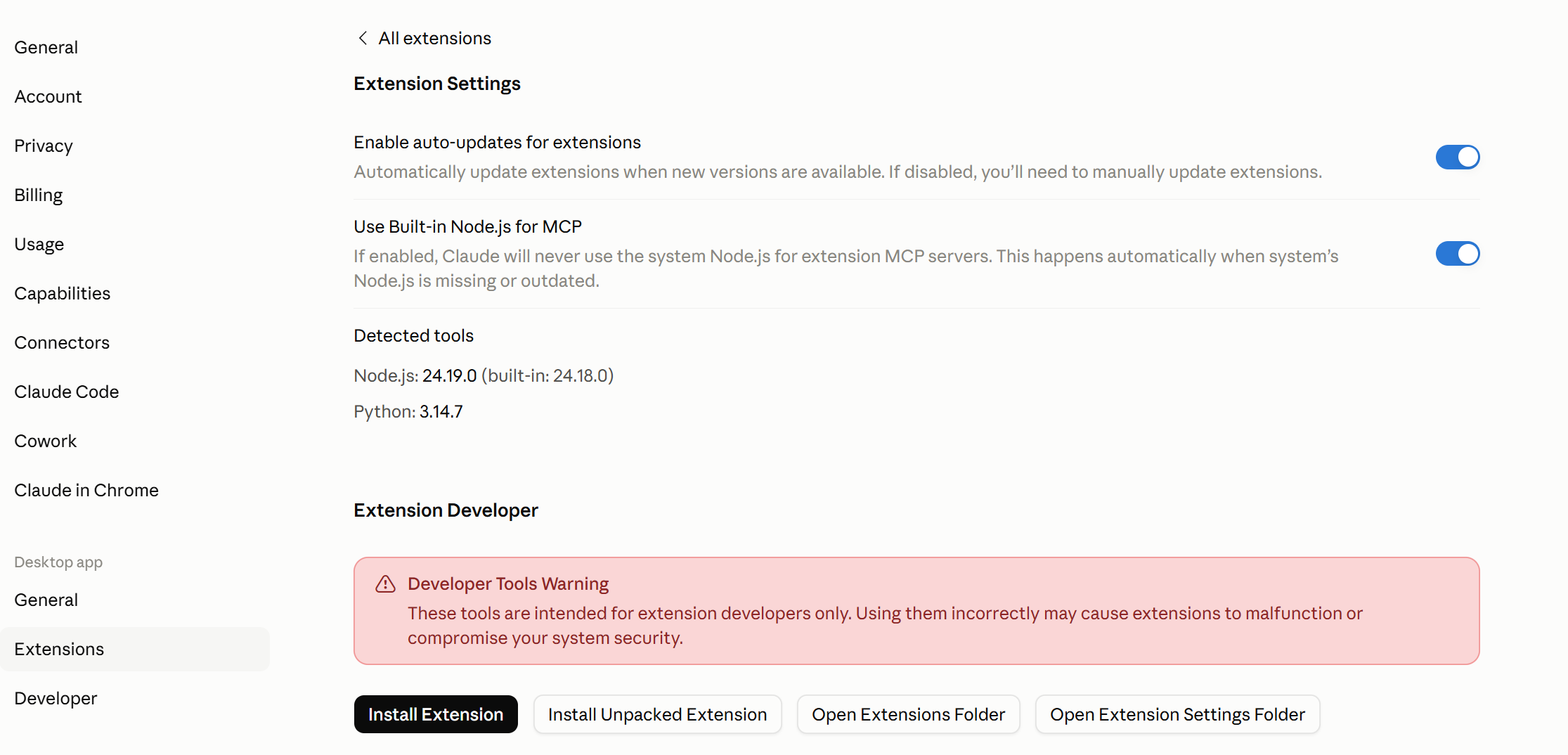
[Screenshot: Claude Desktop’s Extension Developer installation dialog]
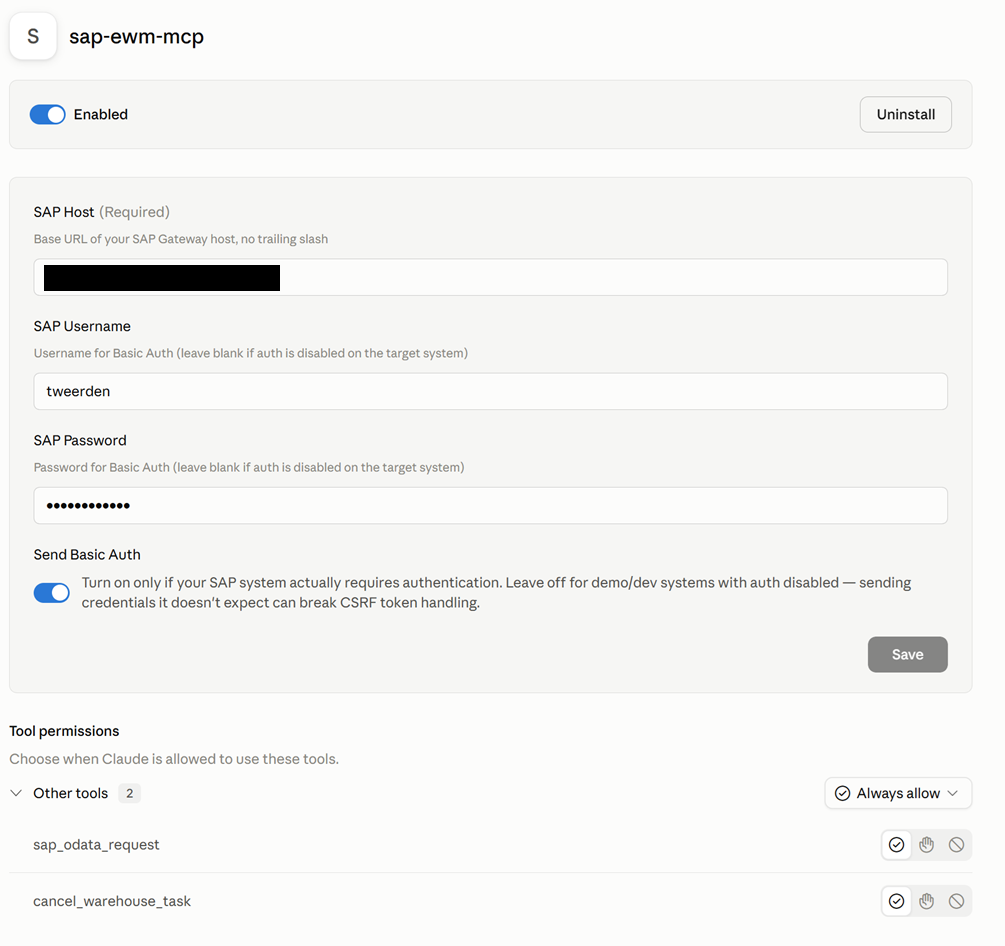
[Screenshot: the configuration prompt asking for SAP Host / Username / Password]
Step 5 — Try it out
Once the connector is installed, you can simply ask, for example:
“Find an open warehouse order in Warehouse 4SCM.”
“Cancel warehouse task 100012969.”
“Show me the pending outbound shipments for warehouse 4SCM.”
“Find warehouse orders that have been open for more than 24 hours and mark them.”
Claude determines which API calls are needed, handles authentication and tokens in the background, and reports the results in plain language.
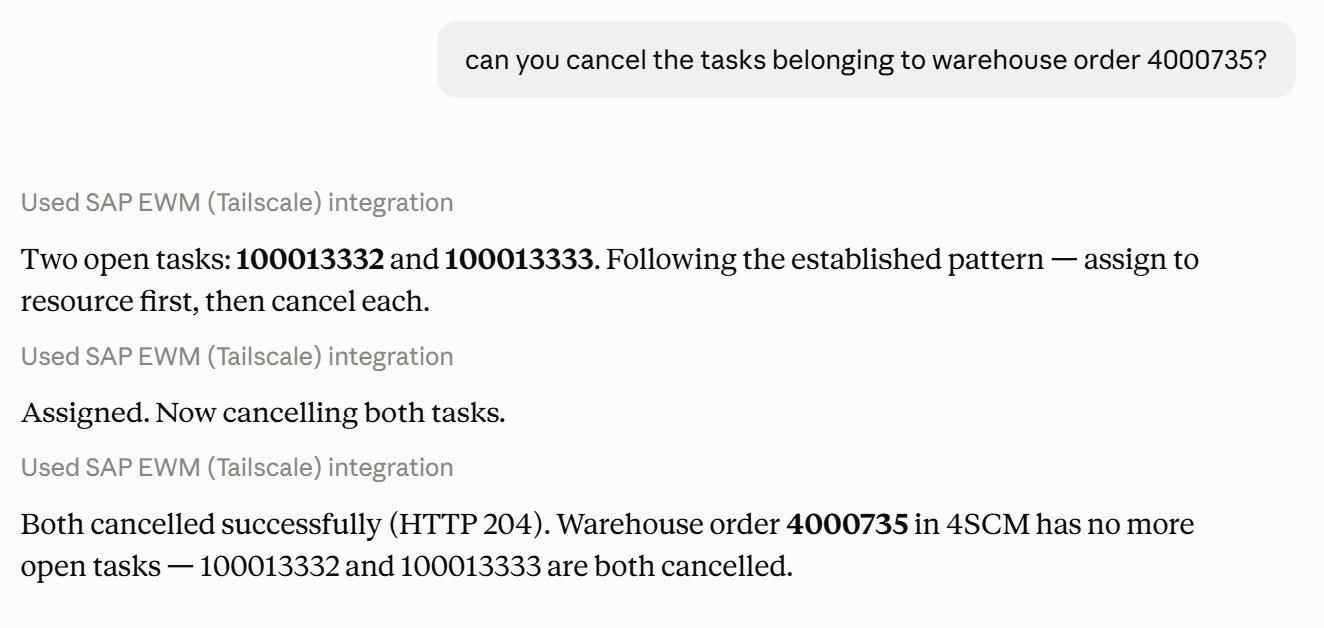
[Screenshot: a complete example conversation—the request, Claude’s tool call indicator, and the result]
Lessons Learned: The Challenging Parts
If you're building something similar, these are the things that will actually take up the most of your time—so it's worth knowing them ahead of time.
CSRF tokens are required for OData v4, with no exceptions. In OData v2, you can sometimes disable CSRF validation for a service. In v4, this is not possible (SAP Note 2322624)—every write operation requires a newly retrieved token and the associated session cookies.
“No authentication” doesn’t actually mean there’s no session. If your SAP system is configured for demo/anonymous access, it may not be able to issue a valid session-bound CSRF token. If you keep getting CSRF errors while authentication is disabled, the solution may simply be to re-enable full authentication for the service.
Not every write operation you might expect is allowed. Some entities—such as warehouse tasks—have completely disabled direct field updates at the platform level. Only the specific actions provided by SAP (such as cancel and confirm) are allowed. You cannot simply modify arbitrary fields of these entities using PATCH, even if they appear to be editable.
The connector parts
We are publishing the connector we built so that others can adapt it to their own SAP systems. It includes:
manifest.json— Extension definition and configuration questionspackage.json— dependenciesserver/index.js— the MCP server itself (CSRF/ETag handling, generic OData request tool, and tool for canceling warehouse tasks)SETUP.md— installation instructions
[Download the sap-ewm-mcp-connector →] To access this file, please send an email to thomas@4scm.nl
A few things to keep in mind if you're reusing it:
You'll need to have it point to your own SAP host and adjust the service paths if you're working with OData services other than the ones we used.
Login credentials are entered for each installation via the Claude Desktop configuration interface and stored locally—they are never included in the package itself.
What now?
This is a first step toward something bigger: business systems you can actually talk to, instead of just clicking your way through them.
We'll continue to expand this connector—with more actions, better error handling, and support for more SAP warehousing APIs—and will share updates as soon as they're available.
Want to try it out for yourself?
We'd be happy to send you the file so you can get started on your own. To gain access, please contact us at thomas@4scm.nl.
If you try this out on your own system, we'd love to hear how it goes.